
How to Use OpenAI Whisper: A Complete Guide for Beginners

Transcribing audio into text can quickly become frustrating, especially when accents, background noise, or multiple speakers make it hard for tools to transcribe the content accurately. OpenAI’s Whisper is designed to handle these challenges, making transcription smoother and more reliable.

A study published in The Journal of the Acoustical Society of America found that Whisper performs exceptionally well with native English speakers and read speech. However, accents and casual conversation can still affect accuracy.

Whether you’re a creator turning interviews into text, a student transcribing lectures, or just someone who wants clear transcripts, OpenAI Whisper can save you time and effort. Learning how to use it effectively can make transcription faster, simpler, and more reliable. 

At a Glance:

  • OpenAI Whisper converts audio to text and supports 99+ languages with translation.
  • Install Python 3.8+, FFmpeg, and the Whisper package to get started.
  • Use the command line to transcribe or translate audio; choose model size based on accuracy vs. speed.
  • Preprocess audio, segment long recordings, and post-process transcripts for best results.
  • Whisper handles diverse accents and background noise but doesn’t distinguish multiple speakers or natively support real-time transcription.
  • Combine with Resemble AI to turn transcripts into lifelike speech with Text-to-Speech or Voice Cloning.

What Is OpenAI Whisper?

OpenAI Whisper is an open-source automatic speech recognition (ASR) system developed by OpenAI and released in September 2022. It converts spoken language into written text and can translate multiple non-English languages into English. 

Whisper is built on a deep learning encoder-decoder transformer architecture and trained on a large, diverse dataset, which allows it to handle different accents, languages, and background noise.

With a clear understanding of what Whisper is and how it works, the next step is to explore its advanced features and capabilities.

Advanced Features of Whisper

Transcribing audio into text can quickly become frustrating, especially when accents, background noise, or multiple speakers make it hard for tools to transcribe the content accurately. OpenAI’s Whisper is designed to handle these challenges, making transcription smoother and more reliable.


A study published in The Journal of the Acoustical Society of America found that Whisper performs exceptionally well with native English speakers and read speech. However, accents and casual conversation can still affect accuracy.
 
Whether you’re a creator turning interviews into text, a student transcribing lectures, or just someone who wants clear transcripts, OpenAI Whisper can save you time and effort. Learning how to use it effectively can make transcription faster, simpler, and more reliable. 

At a Glance:
OpenAI Whisper converts audio to text and supports 99+ languages with translation.
Install Python 3.8+, FFmpeg, and the Whisper package to get started.
Use the command line to transcribe or translate audio; choose model size based on accuracy vs. speed.
Preprocess audio, segment long recordings, and post-process transcripts for best results.
Whisper handles diverse accents and background noise but doesn’t distinguish multiple speakers or natively support real-time transcription.
Combine with Resemble AI to turn transcripts into lifelike speech with Text-to-Speech or Voice Cloning.
What Is OpenAI Whisper?
OpenAI Whisper is an open-source automatic speech recognition (ASR) system developed by OpenAI and released in September 2022. It converts spoken language into written text and can translate multiple non-English languages into English. 

Whisper is built on a deep learning encoder-decoder transformer architecture and trained on a large, diverse dataset, which allows it to handle different accents, languages, and background noise.

With a clear understanding of what Whisper is and how it works, the next step is to explore its advanced features and capabilities.
Advanced Features of Whisper
Alt text : Advanced Features of Whisper
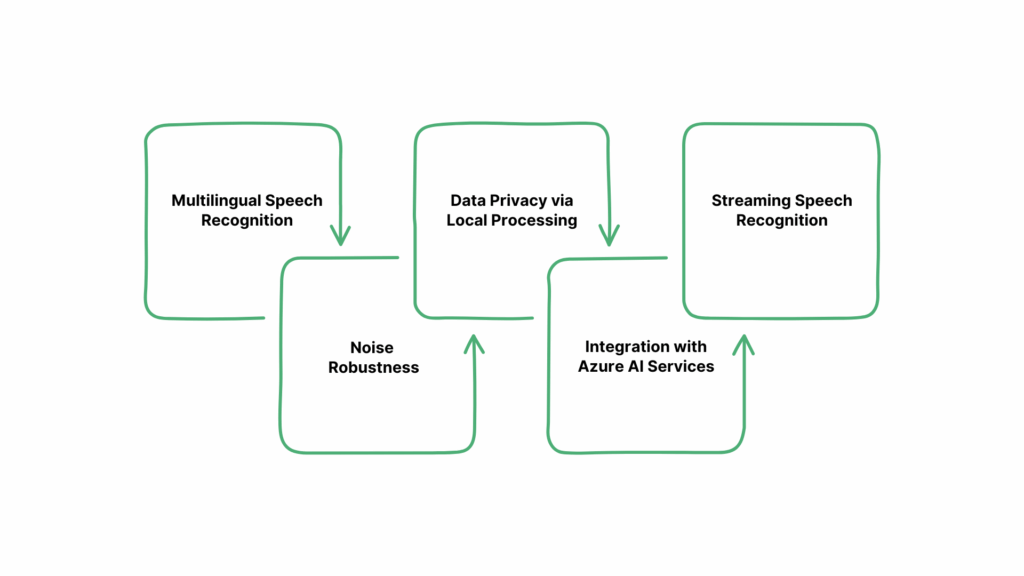
Whisper is more than a basic transcription tool. It offers a range of advanced features designed to handle complex audio tasks, including multilingual support, noise robustness, local processing for privacy, and integration with enterprise services. These features make it suitable for diverse use cases, from personal transcription to professional and real-time applications.
Before diving into the details, it’s helpful to understand what makes Whisper stand out and how these features can improve transcription accuracy and usability.
1. Multilingual Speech Recognition
Whisper supports transcription in nearly 99+ languages, including English, Spanish, French, German, and many others. It can also translate speech from these languages into English. This capability makes it ideal for international organizations and multilingual projects. 
2. Noise Robustness
Trained on a diverse dataset of 680,000 hours of multilingual and multitask supervised data collected from the web, Whisper demonstrates improved robustness to accents, background noise, and technical language. This enables accurate transcription in challenging audio conditions. 
4. Data Privacy via Local Processing
Since Whisper runs locally, your audio never leaves your device. That's a major advantage for sensitive environments like law, medicine, or finance, where data protection is a must.
5. Integration with Azure AI Services
Whisper can be accessed via Azure AI Speech or Azure OpenAI services. Azure AI Speech supports batch processing of large files, speaker diarization, and word-level timestamps, making it suitable for enterprise-level applications. 
Azure OpenAI is recommended for quickly transcribing individual audio files and translating audio from other languages into English.
6. Streaming Speech Recognition
Researchers have adapted Whisper for streaming speech recognition using a two-pass decoding approach. This adaptation allows Whisper to generate partial transcripts in real-time, making it suitable for live transcription applications.
Turn live transcripts into lifelike audio with Resemble AI’s Realtime Speech-to-Speech engine, bringing natural, high-performance speech to gaming, film, IVR, and other interactive applications.
Before you can take advantage of these features, you need to set up Whisper properly on your system.
Setting Up OpenAI Whisper
Setting up OpenAI Whisper involves preparing your system with the necessary software and dependencies, installing the Whisper package, and ensuring your environment is ready for transcription tasks. 

Proper setup allows Whisper to process audio efficiently, whether on a CPU or GPU, and ensures compatibility with different operating systems and audio formats. Following the correct steps reduces errors and improves overall transcription performance.
Prerequisites 
Before installing Whisper, make sure your system meets these basic requirements.
Python Version: Ensure Python 3.8 or higher is installed. You can download it from python.org.
Package Manager: Use pip for installing Python packages.
FFmpeg: Whisper requires FFmpeg for audio processing. Install it using your system's package manager.
Windows: Install FFmpeg via Chocolatey.
macOS: Use Homebrew: brew install ffmpeg
Linux: On Ubuntu/Debian: sudo apt install ffmpeg
Installation Steps
Follow these steps to install Whisper and get it ready for transcription.

Install Whisper: Run the following command to install Whisper via pip:
pip install -U openai-whisper


Alternatively, to install the latest development version:
pip install git+https://github.com/openai/whisper.git


Verify Installation: Check if Whisper is installed correctly by running:
whisper --help


This command should display Whisper's usage instructions. 
Troubleshooting Tips
Here are some practical tips to resolve common issues and ensure Whisper runs smoothly.
Python Installation: Ensure Python is correctly installed and added to your system's PATH.


FFmpeg Issues: If Whisper cannot find FFmpeg, verify that it's installed and accessible from your command line.


Permission Errors: On some systems, you might need to run the installation commands with elevated permissions (e.g., using sudo on Linux/macOS).
Once Whisper is set up, you can start using it to transcribe and translate audio files.
Basic Usage of Whisper
Alt text : Basic Usage of Whisper
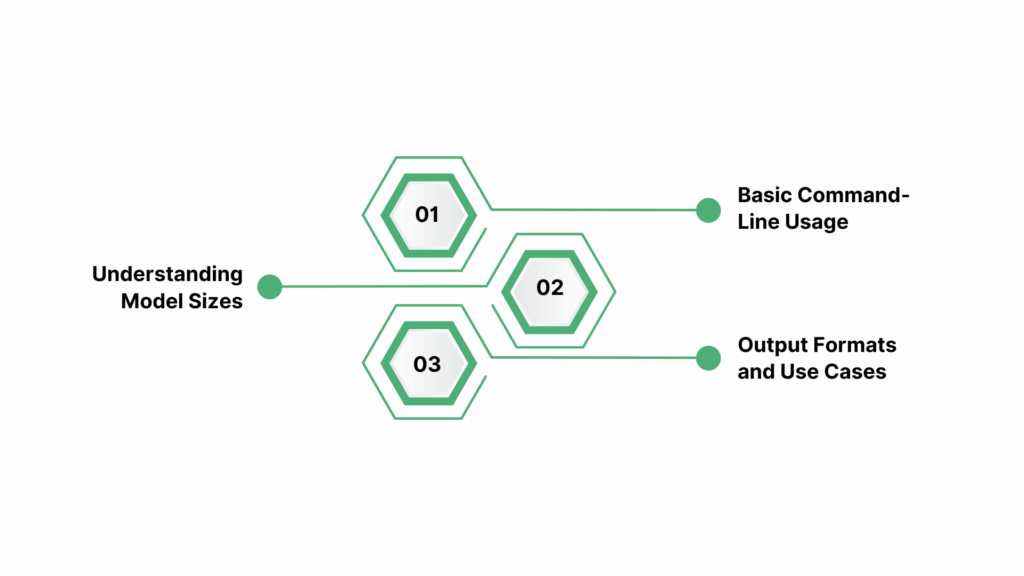
Once OpenAI Whisper is installed and set up, you can begin transcribing and translating audio files with ease. Whisper supports a wide range of audio formats and offers flexibility in output options, making it suitable for various applications such as transcribing meetings, lectures, podcasts, and more.
Basic Command-Line Usage
After installation, you can use Whisper directly from the command line. The basic syntax is:
whisper <audio_file> --language <language_code> --task <transcription|translation> --output <output_format>

<audio_file>: Path to the audio file you want to transcribe or translate.
<language_code>: (Optional) Specify the language of the audio. If not provided, Whisper will attempt to detect the language automatically.
<transcription|translation>: Choose between transcription (converting speech to text) or translation (converting speech to text and translating to English).
<output_format>: Desired output format, such as txt for plain text, srt for subtitles, or vtt for captions.
For example, to transcribe an English audio file and save the output as a text file, you would run:
whisper my_audio.mp3 --language en --task transcription --output txt

Understanding Model Sizes and Accuracy
Whisper offers several model sizes, each with a trade-off between speed and accuracy:
Tiny: Fastest but least accurate.
Base: Balanced speed and accuracy.
Small: Improved accuracy with slightly reduced speed.
Medium: High accuracy suitable for most applications.
Large: Best accuracy but requires more computational resources.
You can specify the model size using the --model flag:
whisper my_audio.mp3 --model medium --language en --task transcription --output txt

Larger models provide better accuracy, especially for challenging audio, but may require more processing time and resources. 
Output Formats and Use Cases
Whisper supports various output formats, making it versatile for different use cases:
Text Files (txt): Ideal for generating transcripts for documentation or analysis.
Subtitles (srt, vtt): Useful for adding captions to videos, enhancing accessibility.
JSON: Provides detailed information, including timestamps and language metadata, suitable for developers integrating Whisper into applications.
For instance, to generate subtitles in the SubRip Subtitle (SRT) format, you would run:
whisper my_audio.mp3 --language en --task transcription --output srt

Important Considerations:
Language Detection: If the --language flag is not specified, Whisper will attempt to detect the language automatically. However, providing the language can improve accuracy.
Audio Quality: Clear audio with minimal background noise yields better transcription results.
Model Selection: Choose the model size based on your accuracy needs and available computational resources.
Output Review: Always review the output for accuracy, especially in professional or critical contexts.
Once you know how to use Whisper, it’s helpful to understand how well it performs and what affects transcription accuracy.
Performance and Accuracy
Whisper’s transcription quality varies depending on the model, audio clarity, and background noise. Understanding its performance helps you select the right model for your needs.
Key Performance Metrics
Here’s a look at the main metrics that show how fast and accurate Whisper can be.


Word Error Rate (WER): Large-v3 models reduce WER by 10–20% compared to previous versions. 
Transcription Speed: Can process up to 3,000 words per minute, depending on model size and hardware. 
Real-Time Factor (RTF): Optimized models like turbo deliver faster transcription with minimal accuracy loss.
Optimizing Accuracy
Accuracy depends on audio quality, speaker clarity, and background noise. To improve results:
Noise Reduction: Minimise background sounds.
Volume Normalization: Ensure consistent audio levels.
Voice Activity Detection (VAD): Focus on speech segments.
Segmentation: Split long recordings into shorter clips for better processing.
Check out the Resemble AI blog post "Top Use Cases for Speech-to-Speech," which explores practical applications of combining transcription and voice synthesis technologies.
With an understanding of its performance and accuracy, you can see how Whisper can be applied effectively across different tasks and industries.
Use Cases and Applications
Alt text : Use Cases and Applications
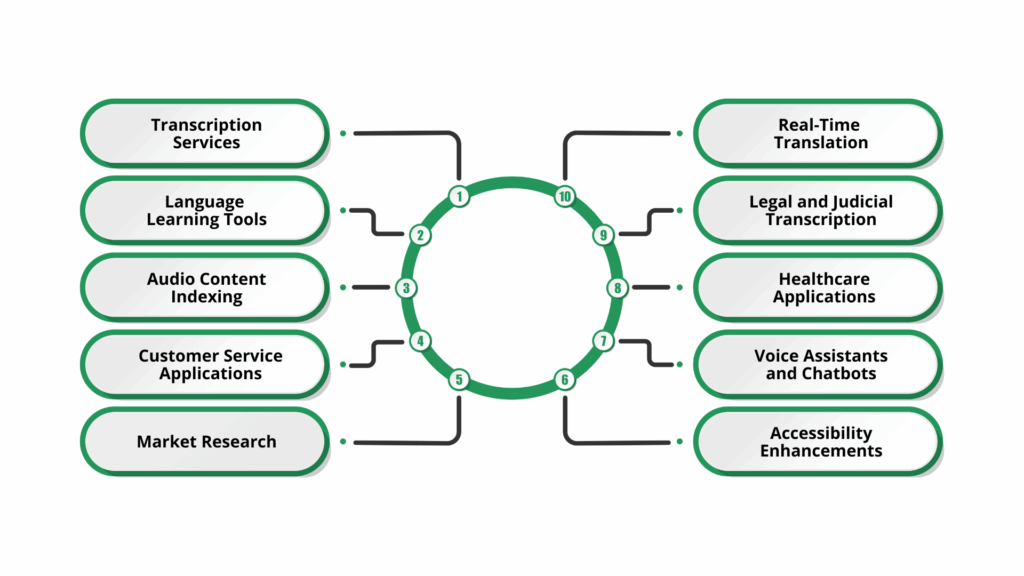
Understanding the performance and accuracy of OpenAI Whisper is essential for selecting the appropriate model and optimizing transcription quality. Whisper's capabilities extend beyond basic transcription, offering solutions that enhance accessibility, streamline workflows, and support multilingual communication. 

Here's an overview of its key applications:

Transcription Services: Convert audio and video into text across multiple languages, handling diverse accents and dialects.
Language Learning Tools: Provide real-time transcription and translation to help learners improve listening and speaking skills.
Podcast and Audio Content Indexing: Transcribe podcasts and audio content for better accessibility and searchability.
Customer Service Applications: Transcribe and analyse customer interactions in real time to enhance service quality.
Market Research: Transcribe feedback and conversations to extract insights for products and marketing strategies.
Accessibility Enhancements: Generate real-time captions and transcriptions for individuals with hearing impairments.
Voice Assistants and Chatbots: Improve natural language understanding and interaction in AI-driven assistants.
Healthcare Applications: Transcribe patient consultations and medical records to support streamlined documentation.
Legal and Judicial Transcription: Assist in documenting court proceedings and legal materials accurately.
Real-Time Translation: Translate spoken language in real time to bridge communication gaps across languages.
Have transcripts, but need them spoken aloud? Resemble AI’s Text-to-Speech converts your Whisper-generated text into high-quality, human-like audio, making your content instantly listenable and engaging.
While Whisper offers a wide range of applications, it’s also essential to understand its limitations and the factors that can affect accuracy and reliability.
Limitations and Considerations
Whisper’s capabilities are impressive, but its performance isn’t uniform across all scenarios. Factors such as audio complexity, speaker variation, and real-time demands can subtly impact results. 
Knowing these nuances helps you make informed choices about model size, preprocessing needs, and when human review may still be necessary.
Key considerations are summarized in the table below:
Category
Limitation
Details
Audio Quality
Sensitive to background noise
Clear audio yields better results; heavy noise can reduce transcription accuracy.
Accents and Dialects
Variable accuracy
Performance can vary with strong accents or less common dialects.
Real-Time Transcription
Not natively supported
Whisper processes complete audio files; live streaming requires adaptations.
Speaker Diarization
Not supported
Whisper does not distinguish between multiple speakers in a recording.
Model Size vs Speed
Trade-off between accuracy and speed
Larger models are more accurate but require more computational resources and time.
High-Risk Applications
Accuracy limitations
Not recommended for critical fields like legal or medical transcription without review.


Recognizing these limits highlights ways to improve accuracy, paving the way for effective transcription practices. 
Best Practices for Effective Transcription
Alt text : Best Practices for Effective Transcription 
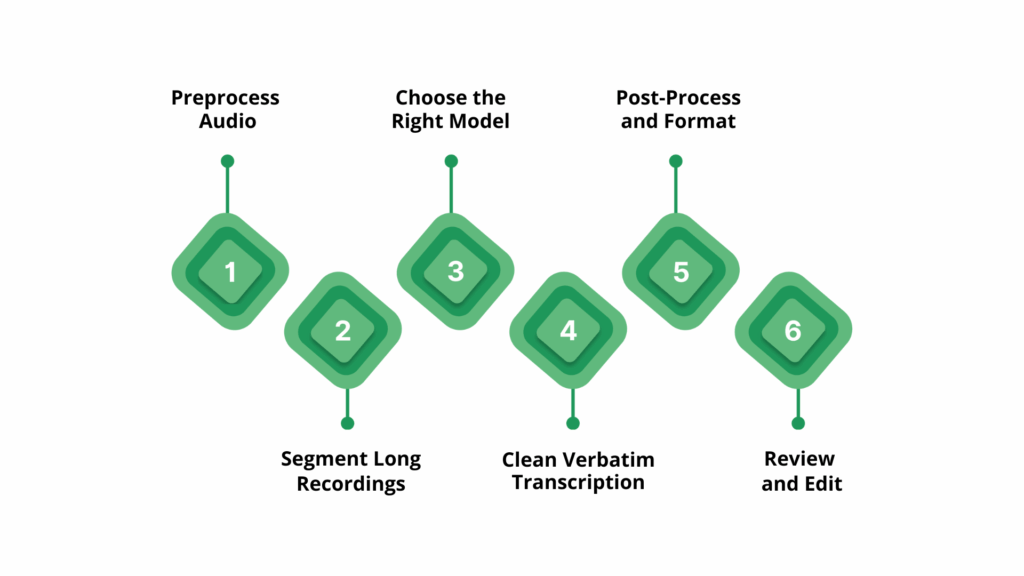
To achieve the most accurate and reliable results with Whisper, it’s not enough to simply run audio through the model. The following best practices highlight practical steps to optimize both accuracy and efficiency. 

Preprocess Audio: Use tools like FFmpeg or Audacity to remove background noise, normalize volume, and trim silences. Clean, consistent audio helps Whisper detect speech more accurately and reduces errors caused by overlapping sounds or low-volume segments.


Segment Long Recordings: Split lengthy recordings into smaller chunks, such as 30–60 second segments. This prevents memory overload, allows faster processing, and ensures that Whisper maintains context more effectively for each segment.


Choose the Right Model: Select a model size that balances accuracy and speed. Larger models capture nuanced speech and handle accents better, while smaller models process faster but may miss details; choosing the right model saves time and resources without sacrificing quality.


Clean Verbatim Transcription: Remove filler words, false starts, and stutters in post-processing to make transcripts readable. Maintaining the speaker’s intent ensures the text is faithful while improving usability for reports, captions, or content indexing.


Post-Process and Format: Add punctuation, correct spelling errors, and structure text into paragraphs or sections. Proper formatting makes transcripts easier to read, searchable, and ready for publication, while automation tools can streamline repetitive tasks.


Review and Edit: Manually check the transcript for inaccuracies, especially for critical applications like legal, medical, or business content. Human review ensures reliability, catching errors Whisper may miss due to accents, background noise, or ambiguous speech.


Also Read: Transcribing and Summarizing Meeting Transcripts Using AI
Conclusion
Effective transcription begins with understanding both the strengths and limitations of the tools you use. Careful audio preparation, the right model choice, and effective post-processing help Whisper deliver accurate and efficient transcriptions for interviews, lectures, or multilingual content. 

For creators, teams, and professionals who need to scale transcription or combine it with voice synthesis, Resemble AI can complement Whisper by turning your transcripts into lifelike speech, generating audio versions of your content, or building custom AI voices. 

Using both tools together streamlines the workflow from speech-to-text and back to high-quality audio, enhancing accessibility, engagement, and efficiency without replacing the transcription process itself.

Discover how this workflow can transform your content; book a Resemble AI demo today and bring your transcripts to life.
FAQs
1. How to use OpenAI Whisper?
Prepare clear audio, select the right model, and segment long recordings. Apply post-processing to ensure accurate and reliable transcriptions.
2. What types of audio can Whisper transcribe?
Whisper supports a wide range of audio formats, including MP3, WAV, and FLAC, and can handle interviews, lectures, podcasts, and multilingual recordings.


3. Can Whisper transcribe in real time?
Whisper is not natively designed for live streaming, but adaptations exist that allow partial or near real-time transcription using segmented processing.

4. Does Whisper support multiple languages?
Yes, Whisper can transcribe nearly 99+ languages and also translate them into English, making it suitable for multilingual content.

5. How does Whisper handle multiple speakers?
Whisper does not provide speaker diarization, so it cannot automatically distinguish between different speakers in a recording. Manual review or additional tools may be needed.
Whisper is more than a basic transcription tool. It offers a range of advanced features designed to handle complex audio tasks, including multilingual support, noise robustness, local processing for privacy, and integration with enterprise services. These features make it suitable for diverse use cases, from personal transcription to professional and real-time applications.

Before diving into the details, it’s helpful to understand what makes Whisper stand out and how these features can improve transcription accuracy and usability.

1. Multilingual Speech Recognition

Whisper supports transcription in nearly 99+ languages, including English, Spanish, French, German, and many others. It can also translate speech from these languages into English. This capability makes it ideal for international organizations and multilingual projects. 

2. Noise Robustness

Trained on a diverse dataset of 680,000 hours of multilingual and multitask supervised data collected from the web, Whisper demonstrates improved robustness to accents, background noise, and technical language. This enables accurate transcription in challenging audio conditions. 

4. Data Privacy via Local Processing

Since Whisper runs locally, your audio never leaves your device. That’s a major advantage for sensitive environments like law, medicine, or finance, where data protection is a must.

5. Integration with Azure AI Services

Whisper can be accessed via Azure AI Speech or Azure OpenAI services. Azure AI Speech supports batch processing of large files, speaker diarization, and word-level timestamps, making it suitable for enterprise-level applications. 

Azure OpenAI is recommended for quickly transcribing individual audio files and translating audio from other languages into English.

6. Streaming Speech Recognition

Researchers have adapted Whisper for streaming speech recognition using a two-pass decoding approach. This adaptation allows Whisper to generate partial transcripts in real-time, making it suitable for live transcription applications.

Turn live transcripts into lifelike audio with Resemble AI’s Realtime Speech-to-Speech engine, bringing natural, high-performance speech to gaming, film, IVR, and other interactive applications.

Before you can take advantage of these features, you need to set up Whisper properly on your system.

Setting Up OpenAI Whisper

Setting up OpenAI Whisper involves preparing your system with the necessary software and dependencies, installing the Whisper package, and ensuring your environment is ready for transcription tasks. 

Proper setup allows Whisper to process audio efficiently, whether on a CPU or GPU, and ensures compatibility with different operating systems and audio formats. Following the correct steps reduces errors and improves overall transcription performance.

Prerequisites 

Before installing Whisper, make sure your system meets these basic requirements.

  • Python Version: Ensure Python 3.8 or higher is installed. You can download it from python.org.
  • Package Manager: Use pip for installing Python packages.
  • FFmpeg: Whisper requires FFmpeg for audio processing. Install it using your system’s package manager.
    • Windows: Install FFmpeg via Chocolatey.
    • macOS: Use Homebrew: brew install ffmpeg
    • Linux: On Ubuntu/Debian: sudo apt install ffmpeg

Installation Steps

Follow these steps to install Whisper and get it ready for transcription.

1. Install Whisper: Run the following command to install Whisper via pip:

    pip install -U openai-whisper

    Alternatively, to install the latest development version:

    pip install git+https://github.com/openai/whisper.git

    2. Verify Installation: Check if Whisper is installed correctly by running:

      whisper –help

      This command should display Whisper’s usage instructions. 

      Troubleshooting Tips

      Here are some practical tips to resolve common issues and ensure Whisper runs smoothly.

      • Python Installation: Ensure Python is correctly installed and added to your system’s PATH.
      • FFmpeg Issues: If Whisper cannot find FFmpeg, verify that it’s installed and accessible from your command line.
      • Permission Errors: On some systems, you might need to run the installation commands with elevated permissions (e.g., using sudo on Linux/macOS).

      Once Whisper is set up, you can start using it to transcribe and translate audio files.

      Basic Usage of Whisper

      Basic Usage of Whisper

      Once OpenAI Whisper is installed and set up, you can begin transcribing and translating audio files with ease. Whisper supports a wide range of audio formats and offers flexibility in output options, making it suitable for various applications such as transcribing meetings, lectures, podcasts, and more.

      1. Basic Command-Line Usage

        After installation, you can use Whisper directly from the command line. The basic syntax is:

        whisper <audio_file> –language <language_code> –task <transcription|translation> –output <output_format>
        • <audio_file>: Path to the audio file you want to transcribe or translate.
        • <language_code>: (Optional) Specify the language of the audio. If not provided, Whisper will attempt to detect the language automatically.
        • <transcription|translation>: Choose between transcription (converting speech to text) or translation (converting speech to text and translating to English).
        • <output_format>: Desired output format, such as txt for plain text, srt for subtitles, or vtt for captions.

        For example, to transcribe an English audio file and save the output as a text file, you would run:

        whisper my_audio.mp3 –language en –task transcription –output txt

        2. Understanding Model Sizes and Accuracy

          Whisper offers several model sizes, each with a trade-off between speed and accuracy:

          • Tiny: Fastest but least accurate.
          • Base: Balanced speed and accuracy.
          • Small: Improved accuracy with slightly reduced speed.
          • Medium: High accuracy suitable for most applications.
          • Large: Best accuracy but requires more computational resources.

          You can specify the model size using the –model flag:

          whisper my_audio.mp3 –model medium –language en –task transcription –output txt

          Larger models provide better accuracy, especially for challenging audio, but may require more processing time and resources. 

          3. Output Formats and Use Cases

            Whisper supports various output formats, making it versatile for different use cases:

            • Text Files (txt): Ideal for generating transcripts for documentation or analysis.
            • Subtitles (srt, vtt): Useful for adding captions to videos, enhancing accessibility.
            • JSON: Provides detailed information, including timestamps and language metadata, suitable for developers integrating Whisper into applications.

            For instance, to generate subtitles in the SubRip Subtitle (SRT) format, you would run:

            whisper my_audio.mp3 –language en –task transcription –output srt

            Important Considerations:

            • Language Detection: If the –language flag is not specified, Whisper will attempt to detect the language automatically. However, providing the language can improve accuracy.
            • Audio Quality: Clear audio with minimal background noise yields better transcription results.
            • Model Selection: Choose the model size based on your accuracy needs and available computational resources.
            • Output Review: Always review the output for accuracy, especially in professional or critical contexts.

            Once you know how to use Whisper, it’s helpful to understand how well it performs and what affects transcription accuracy.

            Performance and Accuracy

            Whisper’s transcription quality varies depending on the model, audio clarity, and background noise. Understanding its performance helps you select the right model for your needs.

            Key Performance Metrics

            Here’s a look at the main metrics that show how fast and accurate Whisper can be.

            • Word Error Rate (WER): Large-v3 models reduce WER by 10–20% compared to previous versions. 
            • Transcription Speed: Can process up to 3,000 words per minute, depending on model size and hardware. 
            • Real-Time Factor (RTF): Optimized models like turbo deliver faster transcription with minimal accuracy loss.

            Optimizing Accuracy

            Accuracy depends on audio quality, speaker clarity, and background noise. To improve results:

            • Noise Reduction: Minimise background sounds.
            • Volume Normalization: Ensure consistent audio levels.
            • Voice Activity Detection (VAD): Focus on speech segments.
            • Segmentation: Split long recordings into shorter clips for better processing.

            Check out the Resemble AI blog post “Top Use Cases for Speech-to-Speech,” which explores practical applications of combining transcription and voice synthesis technologies.

            With an understanding of its performance and accuracy, you can see how Whisper can be applied effectively across different tasks and industries.

            Use Cases and Applications

            Use Cases and Applications

            Understanding the performance and accuracy of OpenAI Whisper is essential for selecting the appropriate model and optimizing transcription quality. Whisper’s capabilities extend beyond basic transcription, offering solutions that enhance accessibility, streamline workflows, and support multilingual communication. 

            Here’s an overview of its key applications:

            • Transcription Services: Convert audio and video into text across multiple languages, handling diverse accents and dialects.
            • Language Learning Tools: Provide real-time transcription and translation to help learners improve listening and speaking skills.
            • Podcast and Audio Content Indexing: Transcribe podcasts and audio content for better accessibility and searchability.
            • Customer Service Applications: Transcribe and analyse customer interactions in real time to enhance service quality.
            • Market Research: Transcribe feedback and conversations to extract insights for products and marketing strategies.
            • Accessibility Enhancements: Generate real-time captions and transcriptions for individuals with hearing impairments.
            • Voice Assistants and Chatbots: Improve natural language understanding and interaction in AI-driven assistants.
            • Healthcare Applications: Transcribe patient consultations and medical records to support streamlined documentation.
            • Legal and Judicial Transcription: Assist in documenting court proceedings and legal materials accurately.
            • Real-Time Translation: Translate spoken language in real time to bridge communication gaps across languages.

            Have transcripts, but need them spoken aloud? Resemble AI’s Text-to-Speech converts your Whisper-generated text into high-quality, human-like audio, making your content instantly listenable and engaging.

            While Whisper offers a wide range of applications, it’s also essential to understand its limitations and the factors that can affect accuracy and reliability.

            Limitations and Considerations

            Whisper’s capabilities are impressive, but its performance isn’t uniform across all scenarios. Factors such as audio complexity, speaker variation, and real-time demands can subtly impact results. 

            Knowing these nuances helps you make informed choices about model size, preprocessing needs, and when human review may still be necessary.

            Key considerations are summarized in the table below:

            CategoryLimitationDetails
            Audio QualitySensitive to background noiseClear audio yields better results; heavy noise can reduce transcription accuracy.
            Accents and DialectsVariable accuracyPerformance can vary with strong accents or less common dialects.
            Real-Time TranscriptionNot natively supportedWhisper processes complete audio files; live streaming requires adaptations.
            Speaker DiarizationNot supportedWhisper does not distinguish between multiple speakers in a recording.
            Model Size vs SpeedTrade-off between accuracy and speedLarger models are more accurate but require more computational resources and time.
            High-Risk ApplicationsAccuracy limitationsNot recommended for critical fields like legal or medical transcription without review.

            Recognizing these limits highlights ways to improve accuracy, paving the way for effective transcription practices. 

            Best Practices for Effective Transcription

            Use Cases and Applications

            To achieve the most accurate and reliable results with Whisper, it’s not enough to simply run audio through the model. The following best practices highlight practical steps to optimize both accuracy and efficiency. 

            • Preprocess Audio: Use tools like FFmpeg or Audacity to remove background noise, normalize volume, and trim silences. Clean, consistent audio helps Whisper detect speech more accurately and reduces errors caused by overlapping sounds or low-volume segments.
            • Segment Long Recordings: Split lengthy recordings into smaller chunks, such as 30–60 second segments. This prevents memory overload, allows faster processing, and ensures that Whisper maintains context more effectively for each segment.
            • Choose the Right Model: Select a model size that balances accuracy and speed. Larger models capture nuanced speech and handle accents better, while smaller models process faster but may miss details; choosing the right model saves time and resources without sacrificing quality.
            • Clean Verbatim Transcription: Remove filler words, false starts, and stutters in post-processing to make transcripts readable. Maintaining the speaker’s intent ensures the text is faithful while improving usability for reports, captions, or content indexing.
            • Post-Process and Format: Add punctuation, correct spelling errors, and structure text into paragraphs or sections. Proper formatting makes transcripts easier to read, searchable, and ready for publication, while automation tools can streamline repetitive tasks.
            • Review and Edit: Manually check the transcript for inaccuracies, especially for critical applications like legal, medical, or business content. Human review ensures reliability, catching errors Whisper may miss due to accents, background noise, or ambiguous speech.

            Also Read: Transcribing and Summarizing Meeting Transcripts Using AI

            Conclusion

            Effective transcription begins with understanding both the strengths and limitations of the tools you use. Careful audio preparation, the right model choice, and effective post-processing help Whisper deliver accurate and efficient transcriptions for interviews, lectures, or multilingual content. 

            For creators, teams, and professionals who need to scale transcription or combine it with voice synthesis, Resemble AI can complement Whisper by turning your transcripts into lifelike speech, generating audio versions of your content, or building custom AI voices. 

            Using both tools together streamlines the workflow from speech-to-text and back to high-quality audio, enhancing accessibility, engagement, and efficiency without replacing the transcription process itself.

            Discover how this workflow can transform your content; book a Resemble AI demo today and bring your transcripts to life.

            FAQs

            1. How to use OpenAI Whisper?

            Prepare clear audio, select the right model, and segment long recordings. Apply post-processing to ensure accurate and reliable transcriptions.

            2. What types of audio can Whisper transcribe?

            Whisper supports a wide range of audio formats, including MP3, WAV, and FLAC, and can handle interviews, lectures, podcasts, and multilingual recordings.

            3. Can Whisper transcribe in real time?

            Whisper is not natively designed for live streaming, but adaptations exist that allow partial or near real-time transcription using segmented processing.

            4. Does Whisper support multiple languages?

            Yes, Whisper can transcribe nearly 99+ languages and also translate them into English, making it suitable for multilingual content.

            5. How does Whisper handle multiple speakers?

            Whisper does not provide speaker diarization, so it cannot automatically distinguish between different speakers in a recording. Manual review or additional tools may be needed. 

            More Related to This

            The Deepfake Threat Moved Faster. So Did We.

            The Deepfake Threat Moved Faster. So Did We.

            When Zohaib and Will came back from MWC Barcelona, the story they told stuck with me. They ran a game at the booth. Played audio clips to people and asked: real voice or AI-generated? Engineers. Enterprise buyers. Security professionals. People who work in this space...

            read more